Schedules
Schedules are a tabular representation of the distribution system. This is a great environment to rapidly create distribution systems. Schedules are primarily used for Distribution Boards, Switchboards, and Panelboards. Not every piece of Equipment has a dedicated Schedule.
The top portion of the Workspace shows all open Schedules. A selected item will highlight on the corresponding Schedule. Schedules can be exported to AutoCAD or Excel.
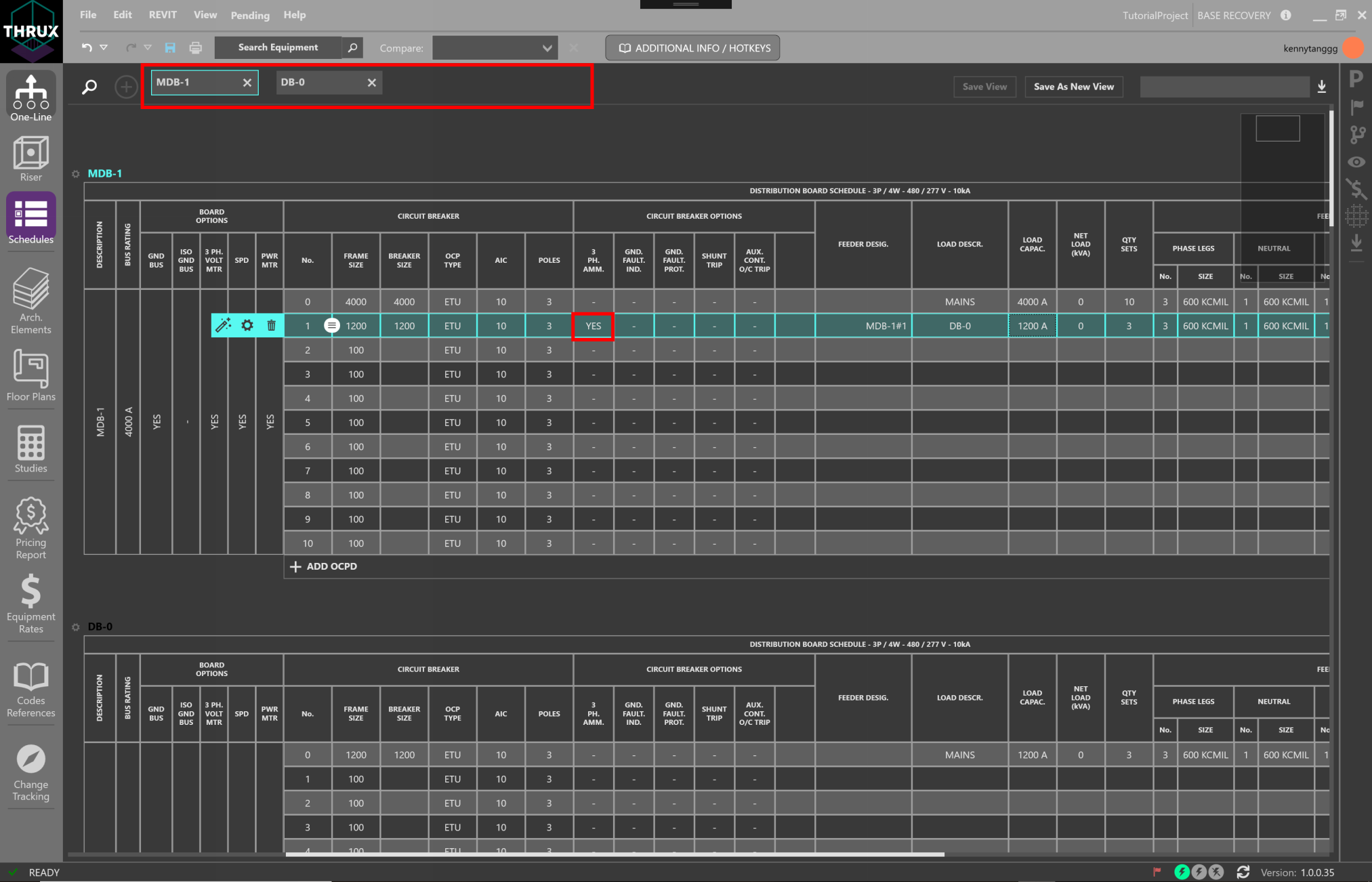
Open Schedules and selecting circuit breaker options
Open Schedule
To open an existing Schedule use the Add (+) button.
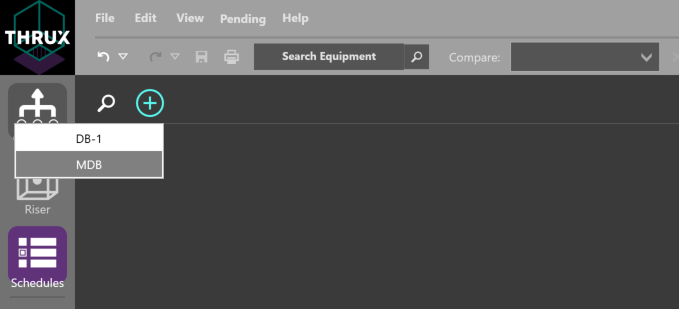
Using the Add button to open Schedules
Adding, Deleting, Editing Equipment
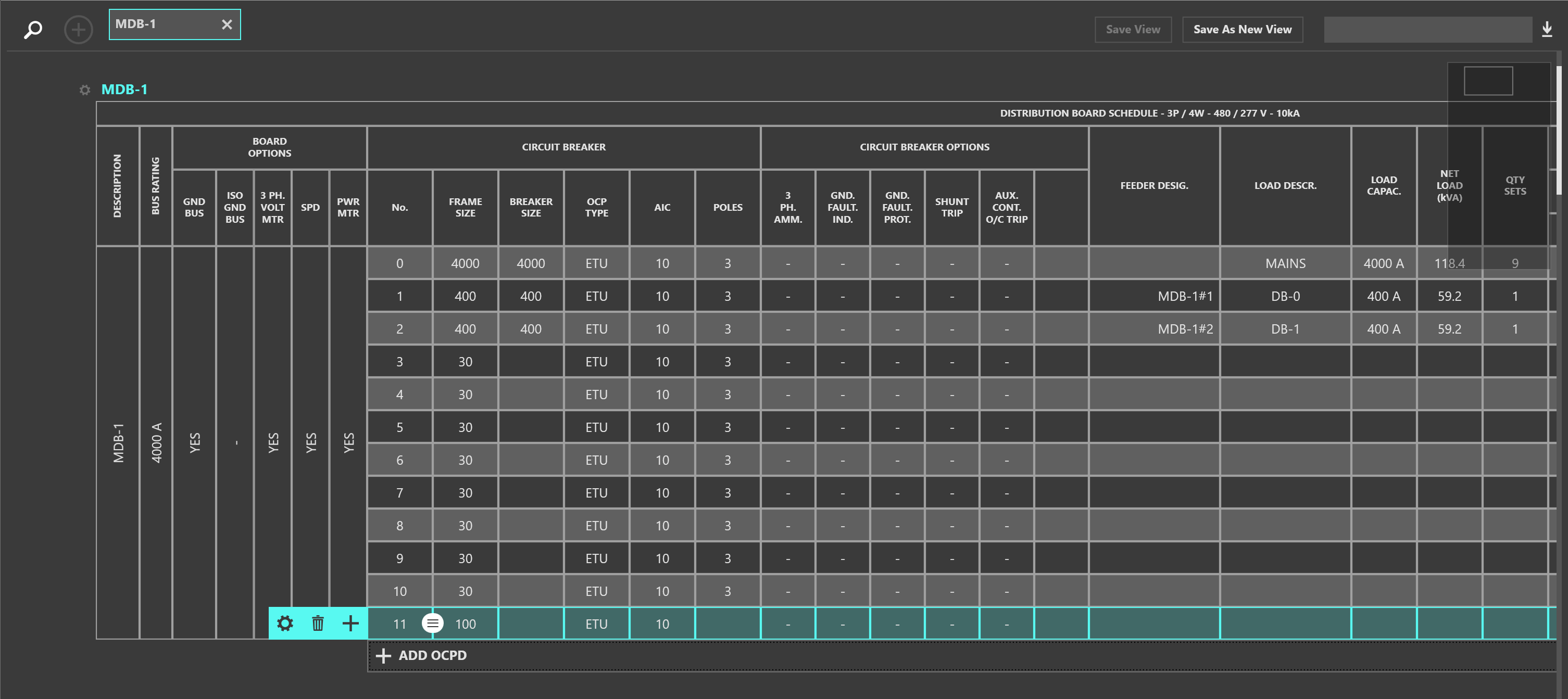
Clicking on a circuit number selects a circuit. With an empty circuit selected, note the options to Add Equipment (+ icon), or Delete (trash icon), or Edit Properties (gear icon).

Editing a space
Deleting a circuit that has a connected load will prompt you to delete the selected Equipment or the entire downstream network. The OCPD will reset to the smallest available size.
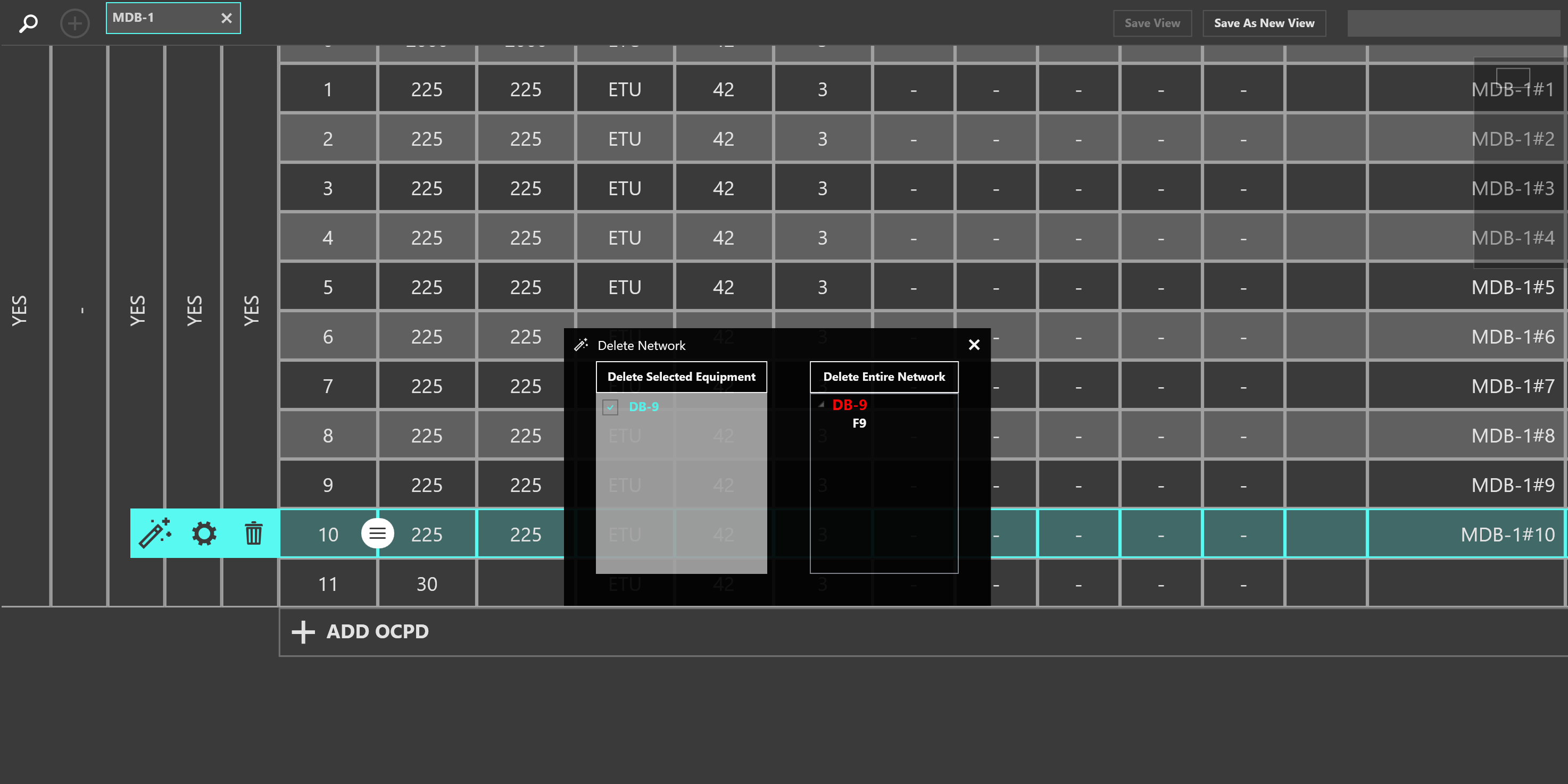
Deleting the selected Equipment or its entire downstream network
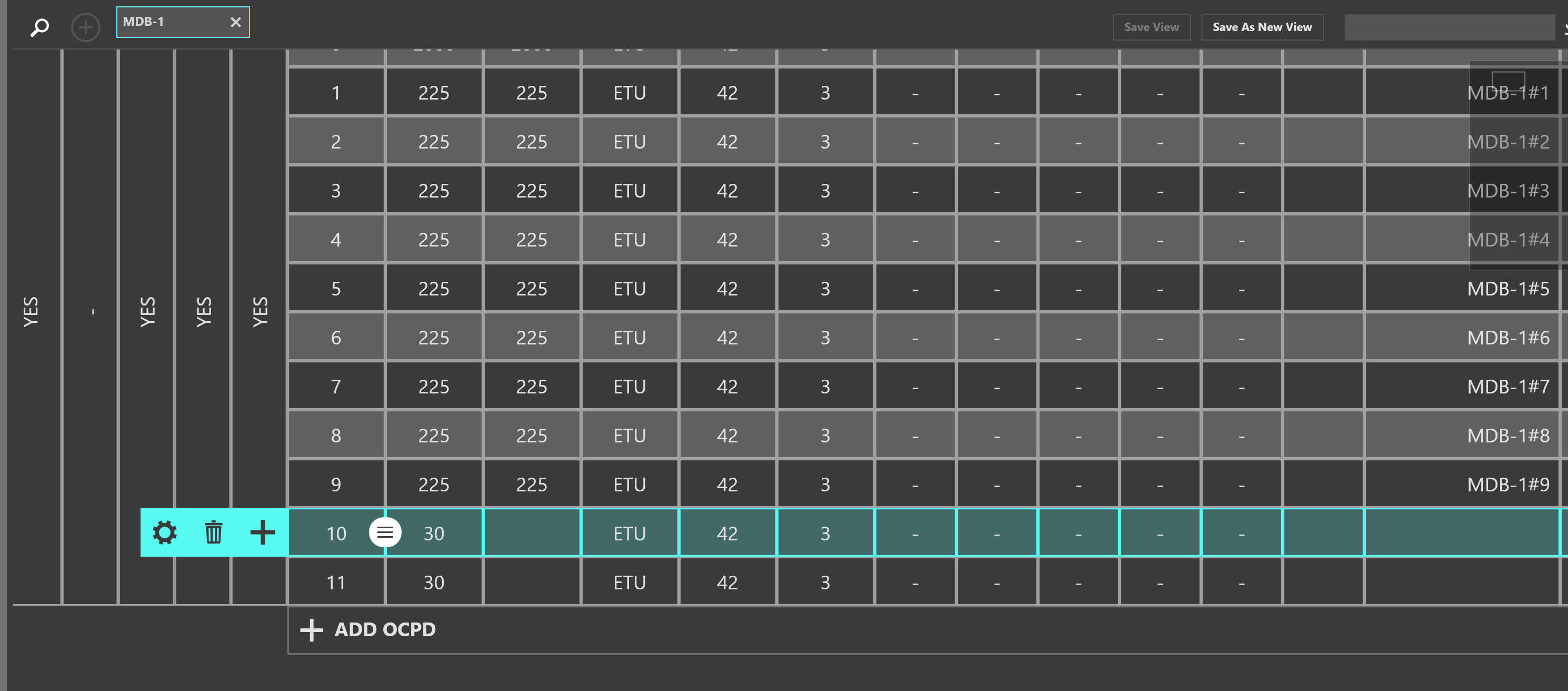
Deleting a circuit with a connected load resets the OCPD to the smallest possible value
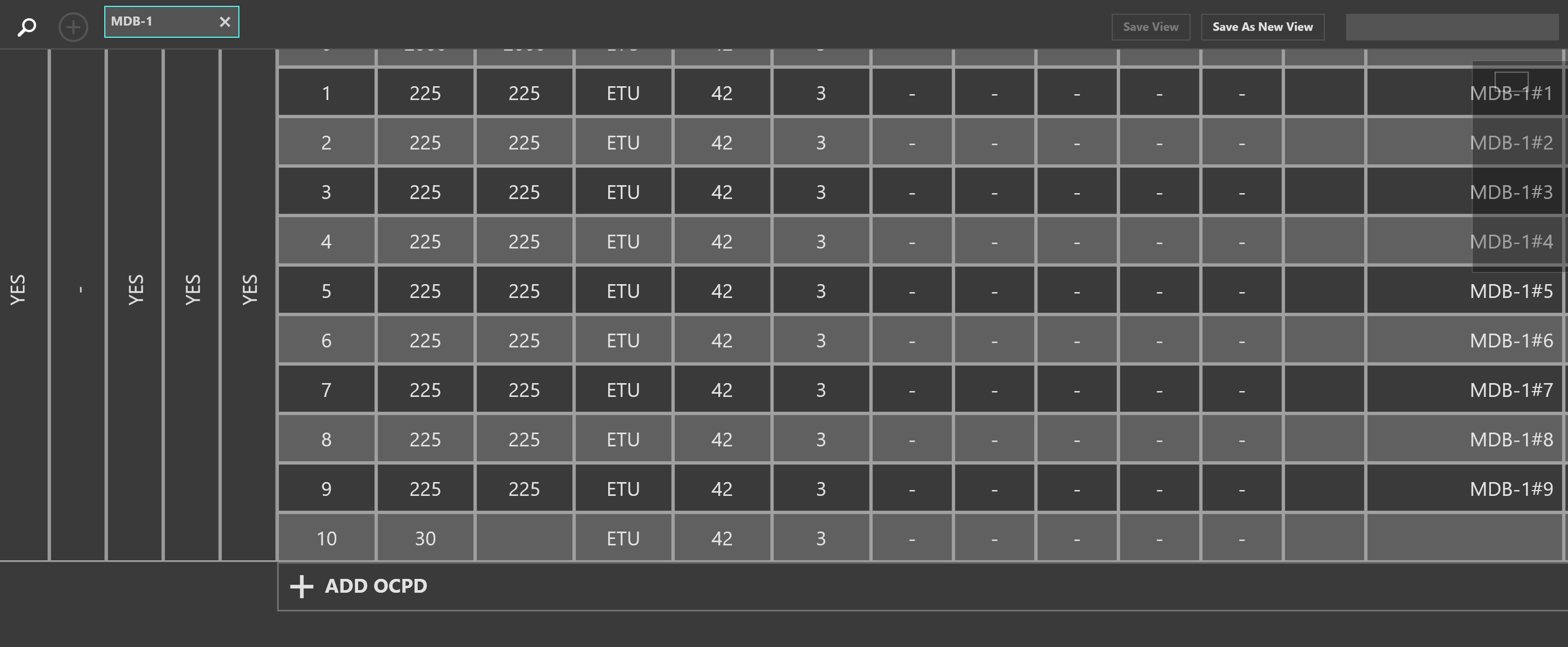
Deleting an empty circuit or a circuit without a connected load deletes the OCPD
Copy/Paste Circuits
Copying, Deleting, and Moving Equipment in the Schedules Workspace is similar to the interactions in the One-Line.
Once a Schedule is open, to copy a circuit select the circuit number or click the circuit breaker number. Selection will be highlighted.
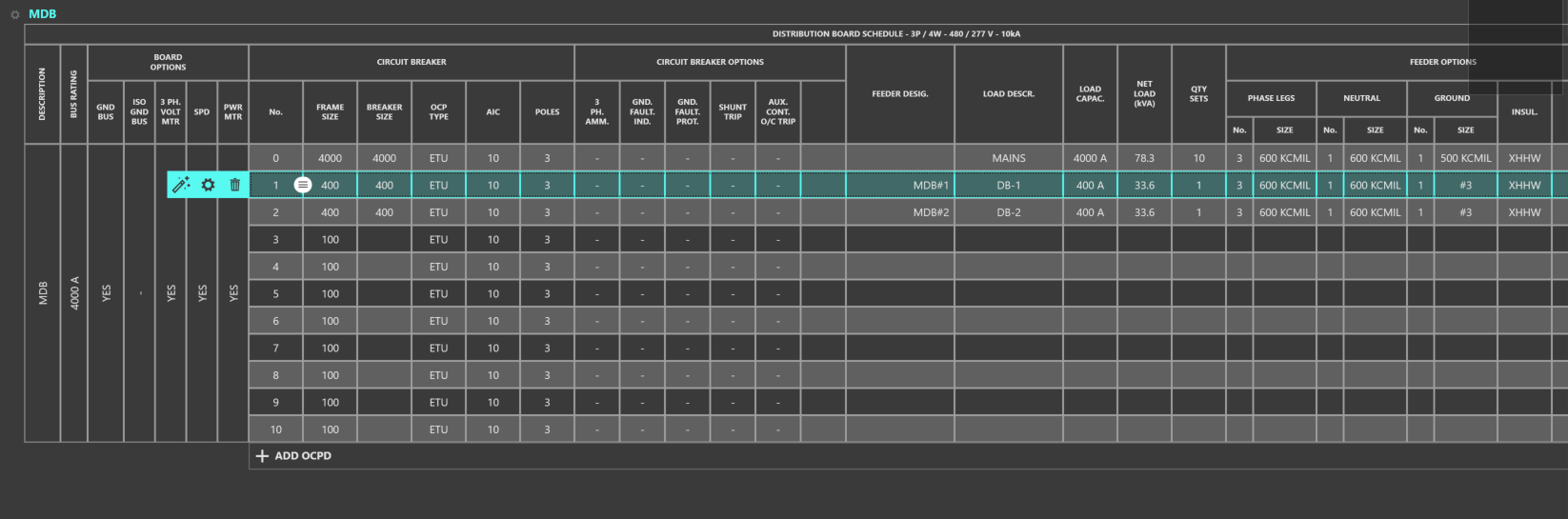
Selecting a circuit
Next use CTRL+C to copy or CTRL+X to cut. The selection will highlight to a different color and be added to the clipboard.
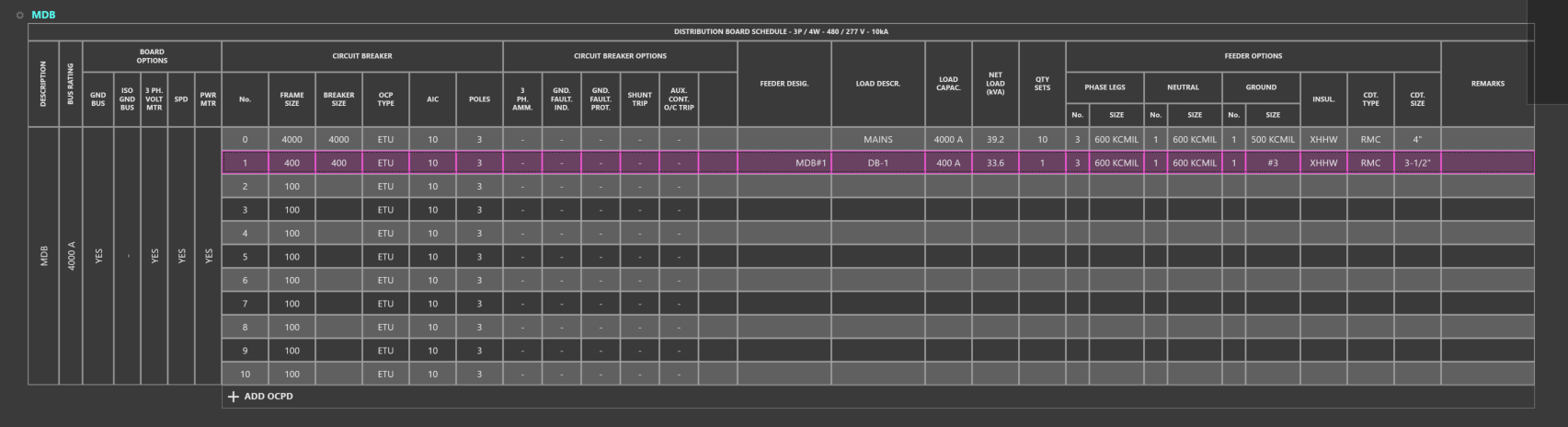
Copying or cutting a circuit
Then, select the source or Equipment to paste to and click Paste or use CTRL+V. Equipment can be pasted on the same Schedule, or other open Schedule.
Select All
To select all circuits of a Schedule, first select the circuit number or click the circuit breaker number.
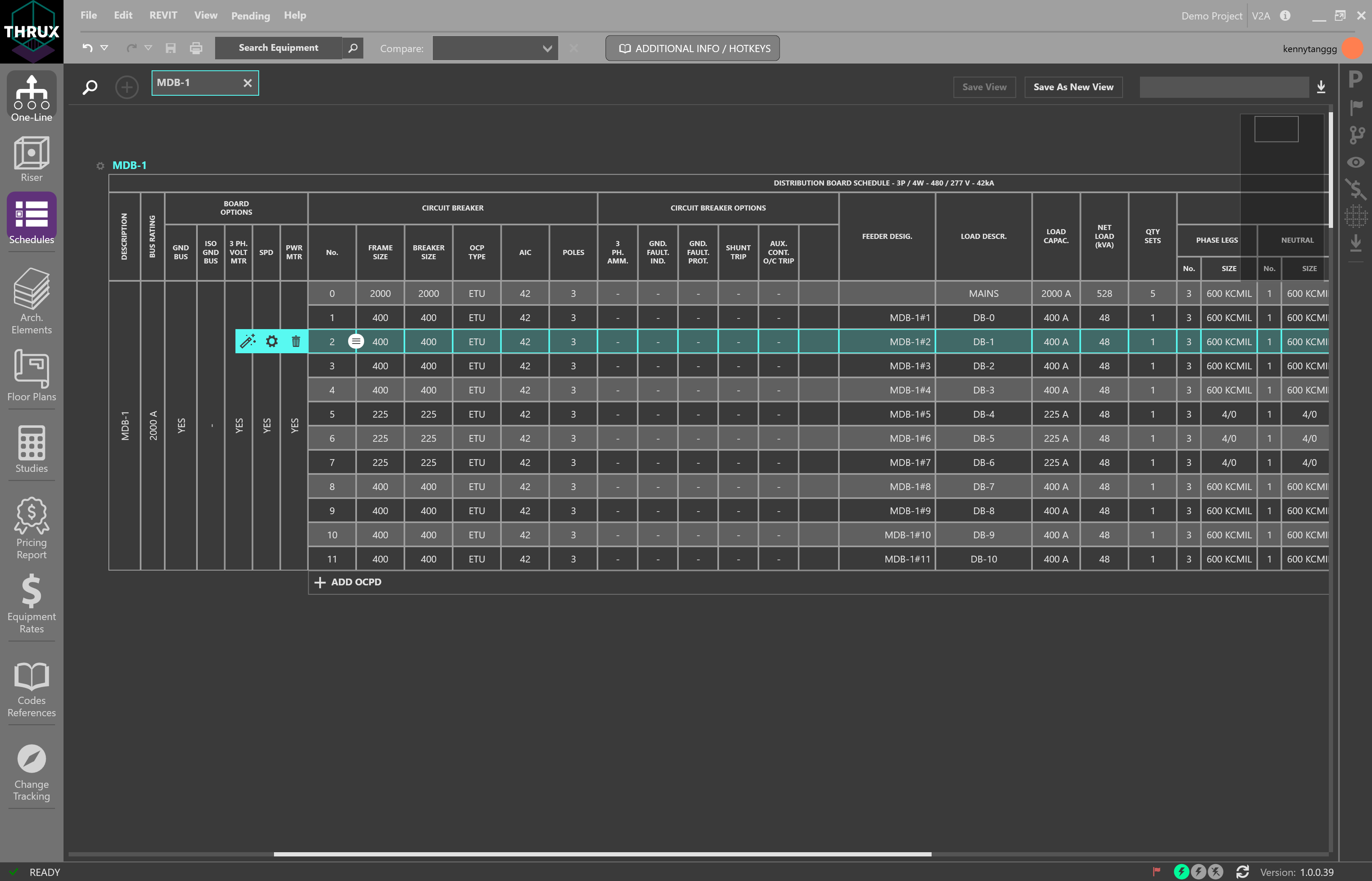
Selection is highlighted in cyan
Then use CTRL+A to Select All circuits.
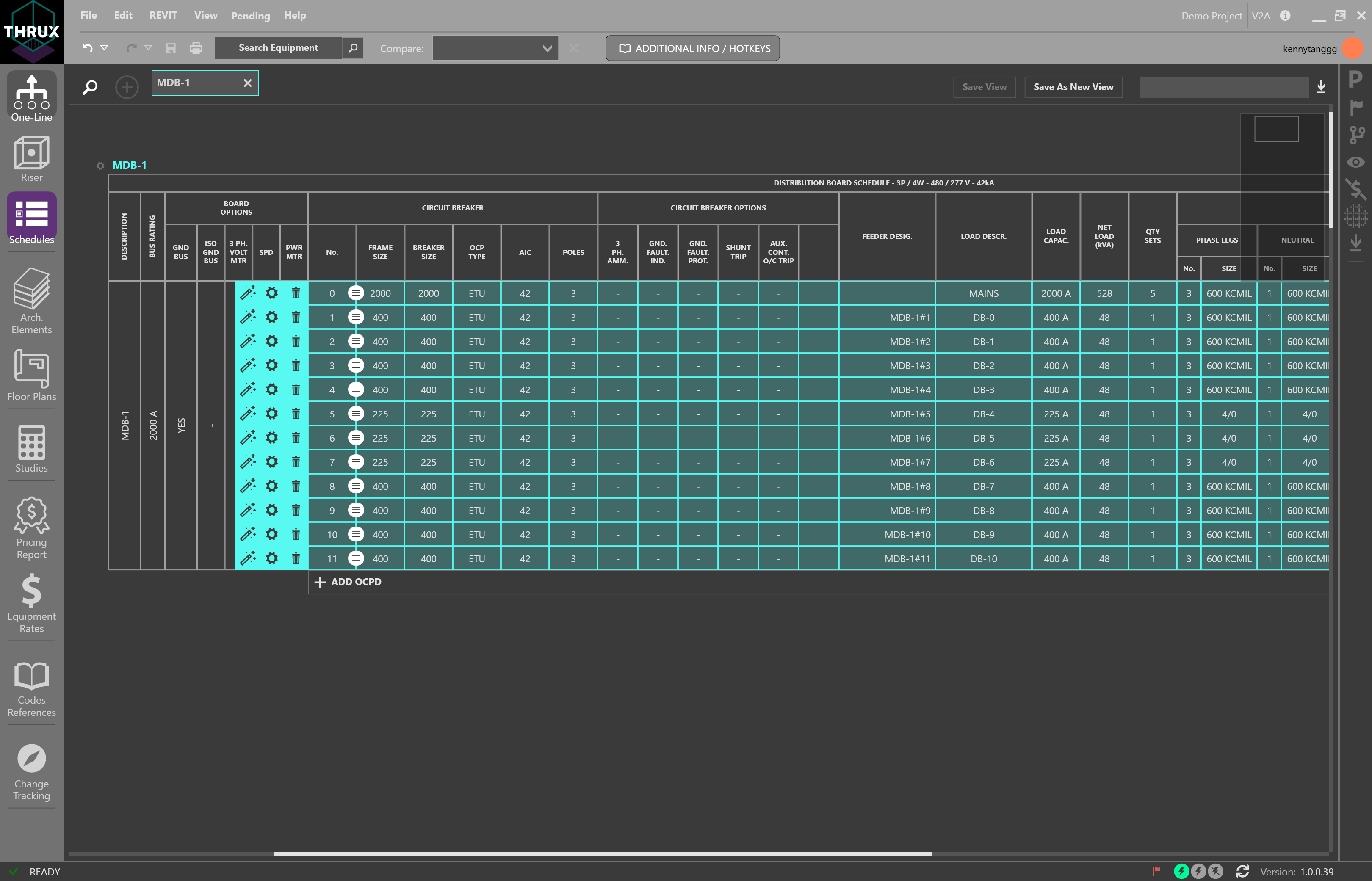
All circuits selected are highlighted in cyan
Reset to Code Minimum
THRUX can automate the selection of many parametric components, but these can also be manually modified. You can reset the circuit properties to be the code-minimum value, based on the Load Capacity.
Select the circuit number, then click Reset to Code Minimum (wand symbol). Or, right-click the circuit, and then select Reset to Code Minimum.
With Design Assistance enabled, THRUX will automatically calculate code minimum values, such as OCPD size, conductor size, and conduit size, when the Equipment’s Load Capacity is changed.
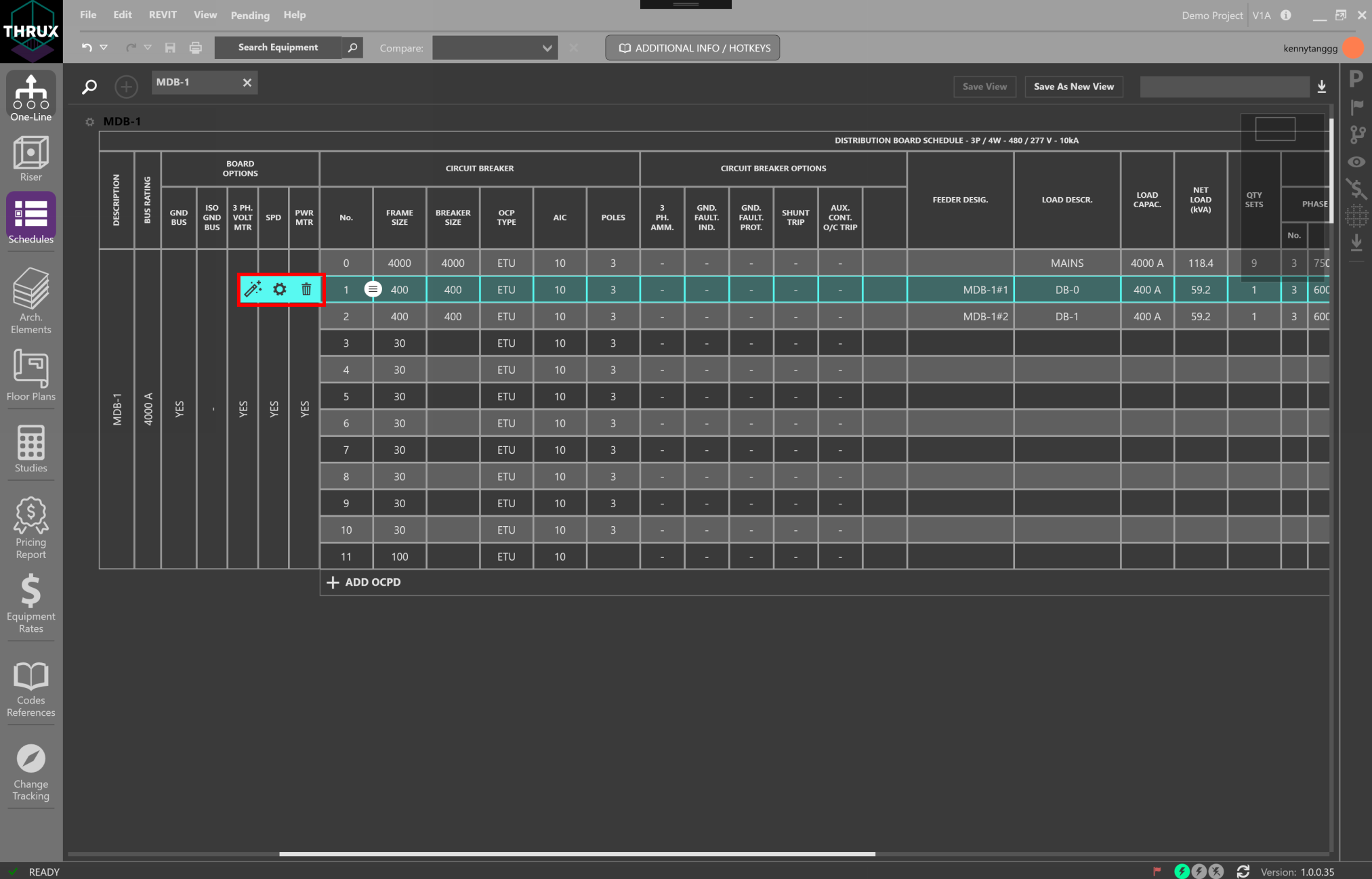
Select a circuit and use the wand symbol to reset the circuit its code-minimum values
Rehosting Equipment/Reordering Circuits
The ordering of circuits can affect the overall construction of the board. To move circuits, select the circuit number and then click and drag the Grip (grip icon).
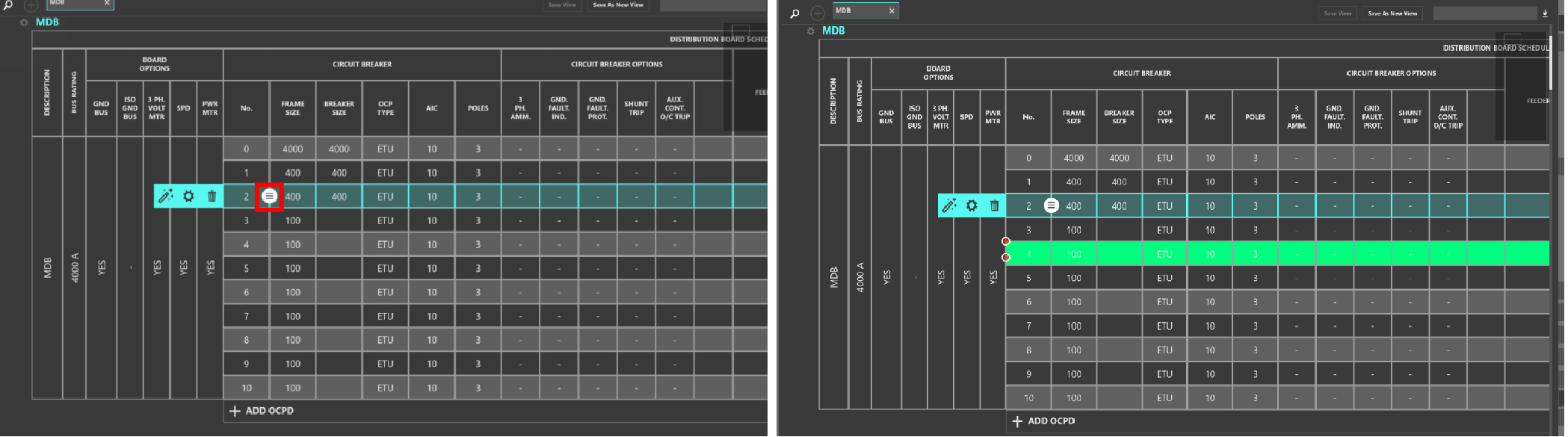
Selected circuit is highlighted. Use the grip to move the circuit to a separate space
Lock/Unlock
You can lock a selection which will prevent elements from being modified. Select a circuit number and then click the Lock/Unlock (lock symbol) button.
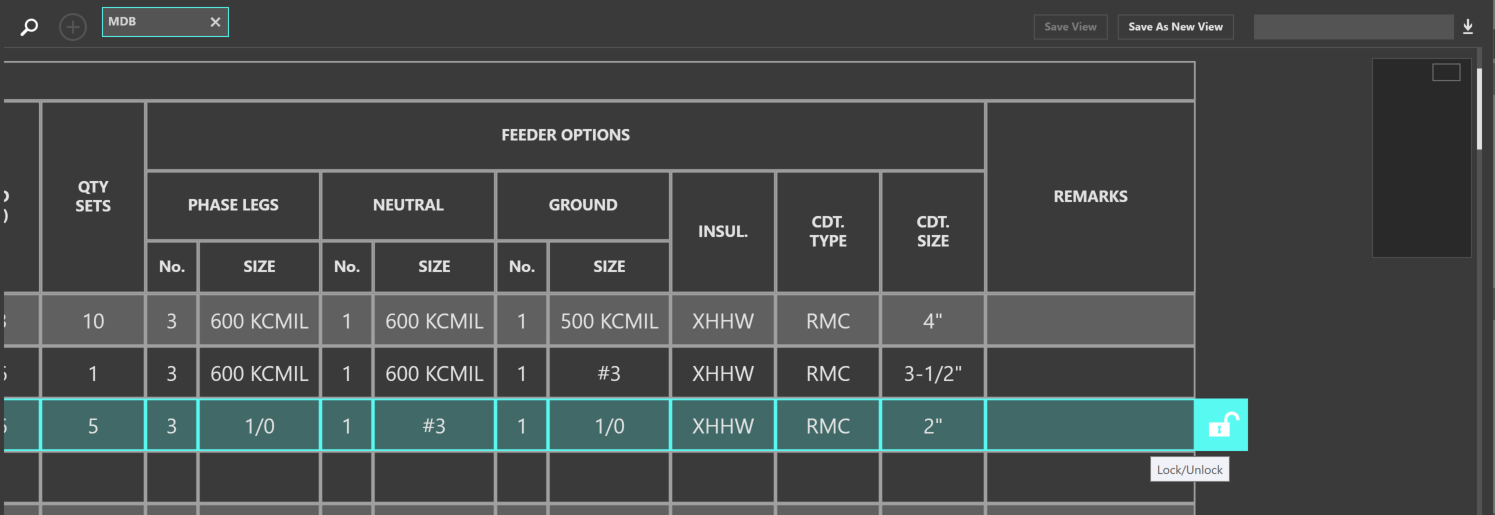
Unlocked circuits are free to be modified
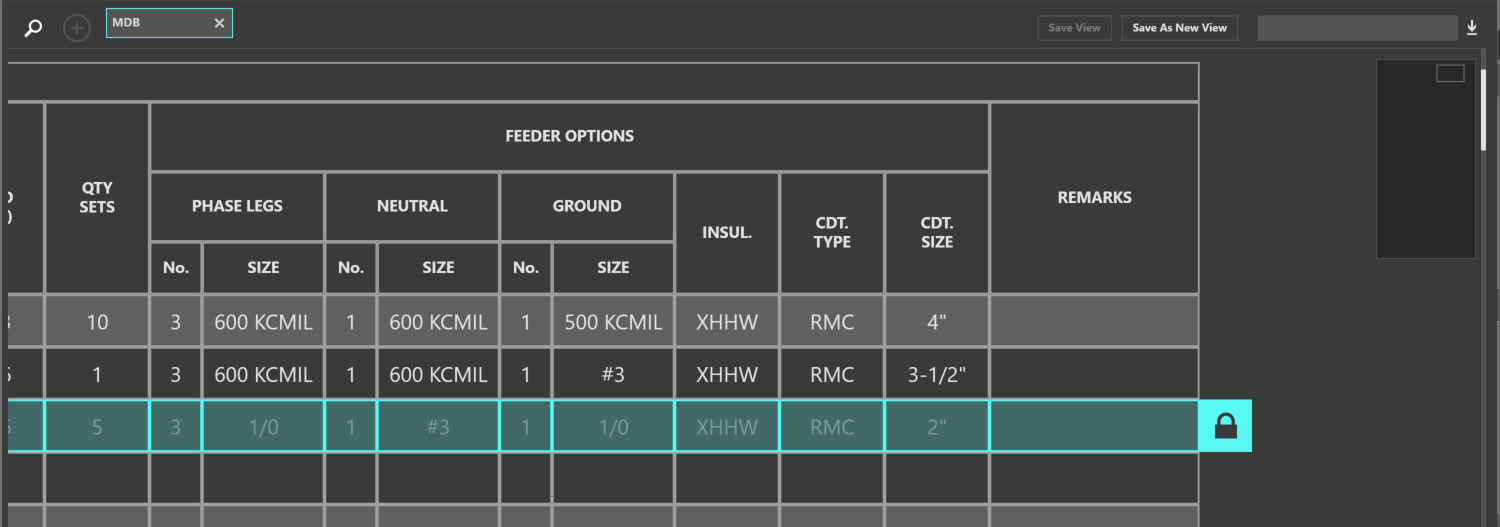
Locked circuits are shaded in a gray color
Adding OCPD’s
The amount of protective devices a distribution board supports is proportional to its physical installation. Equipment cannot be added to a distribution board unless there is space alotted.
To add a protective device, click Add OCPD.
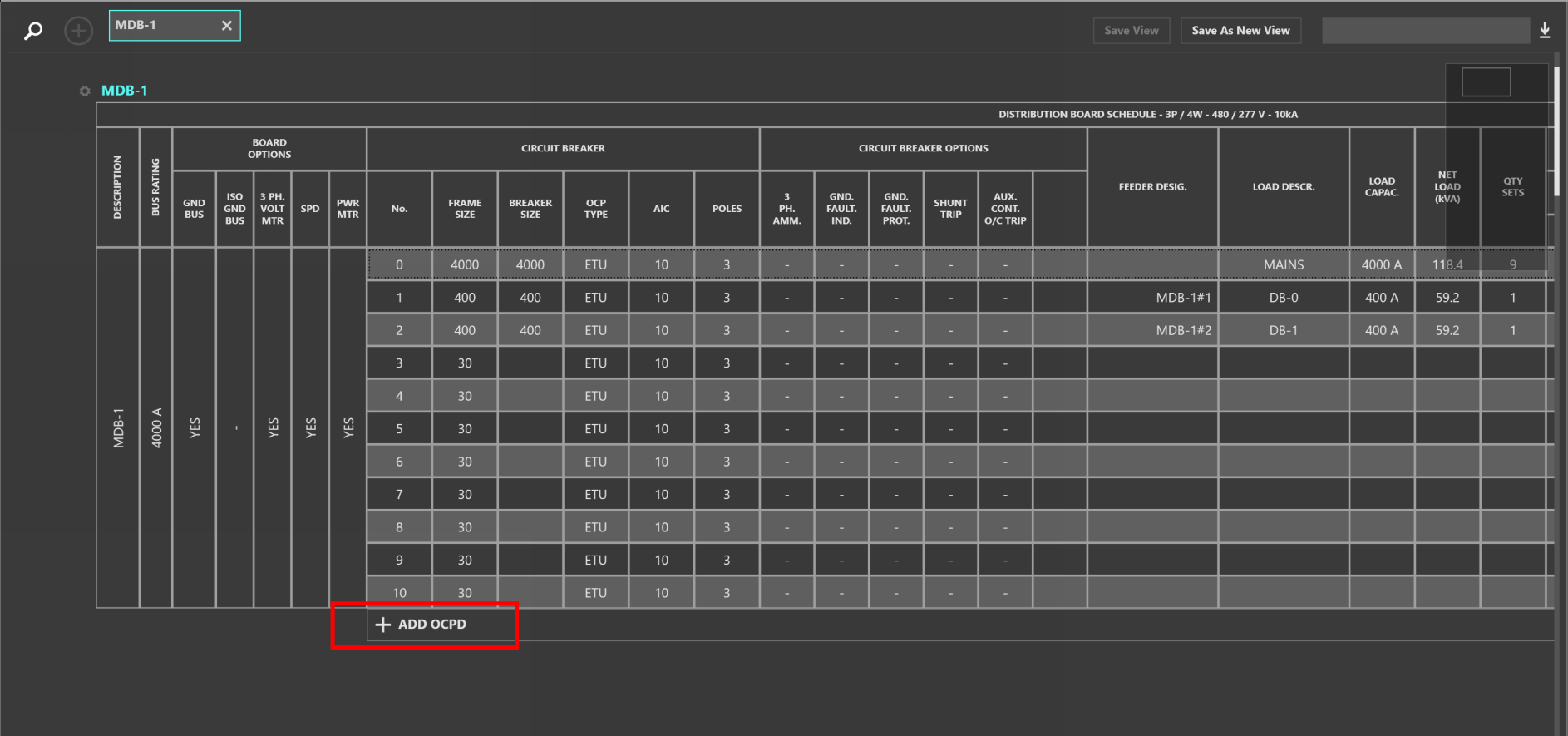
Adding an OCPD
Navigate
Right-click on a circuit element to open a utility menu. You can navigate to other Schedules or to the One-Line by selecting Scope to Schedule or Scope to One-Line.
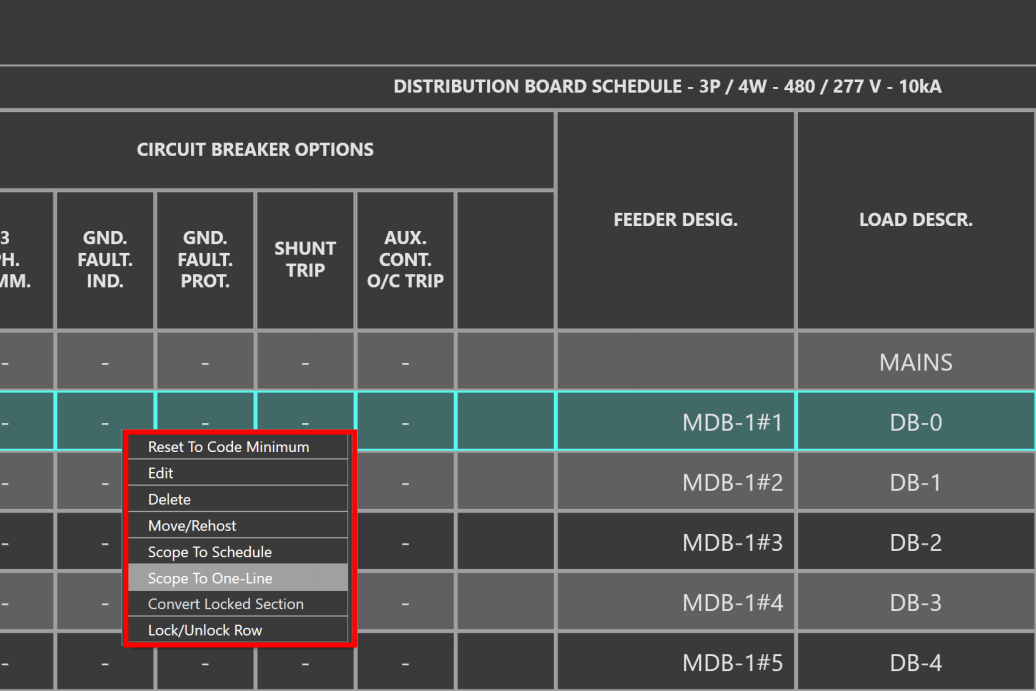
Navigating to the One-Line
Comparing Schedules Between Branches
It is common to identify changes between Issuances or Branches.
Open a Branch and open the Schedules you would like to compare. Then click the Compare dropdown and select the Branch you would like to compare against. Note that you can only compare against previous Branches. If you are in the Base or initial Branch, it is not possible to compare against any other Branch.
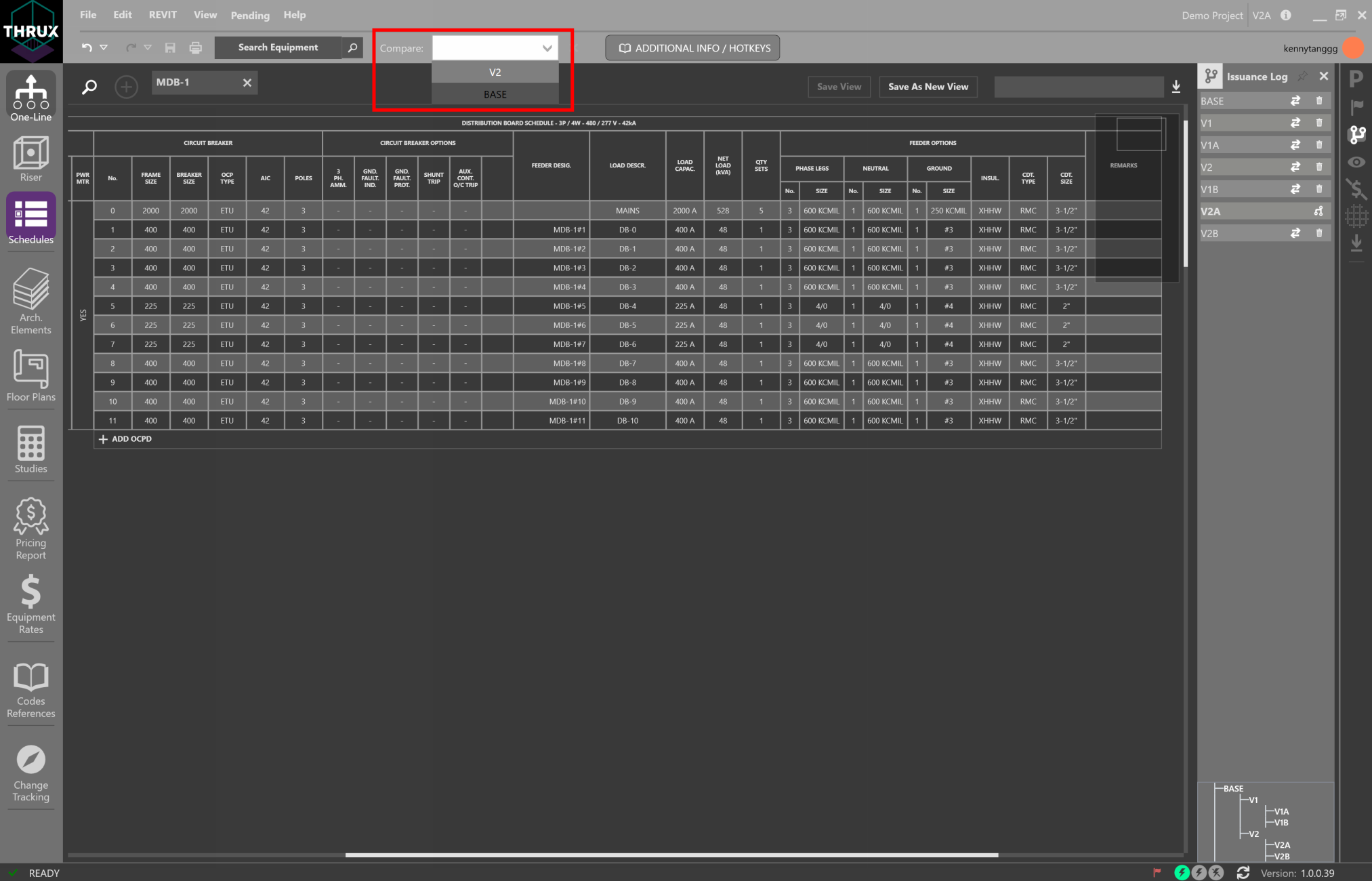
Comparing Schedules between Branches
Any change on the Schedule will be highlighted in red.
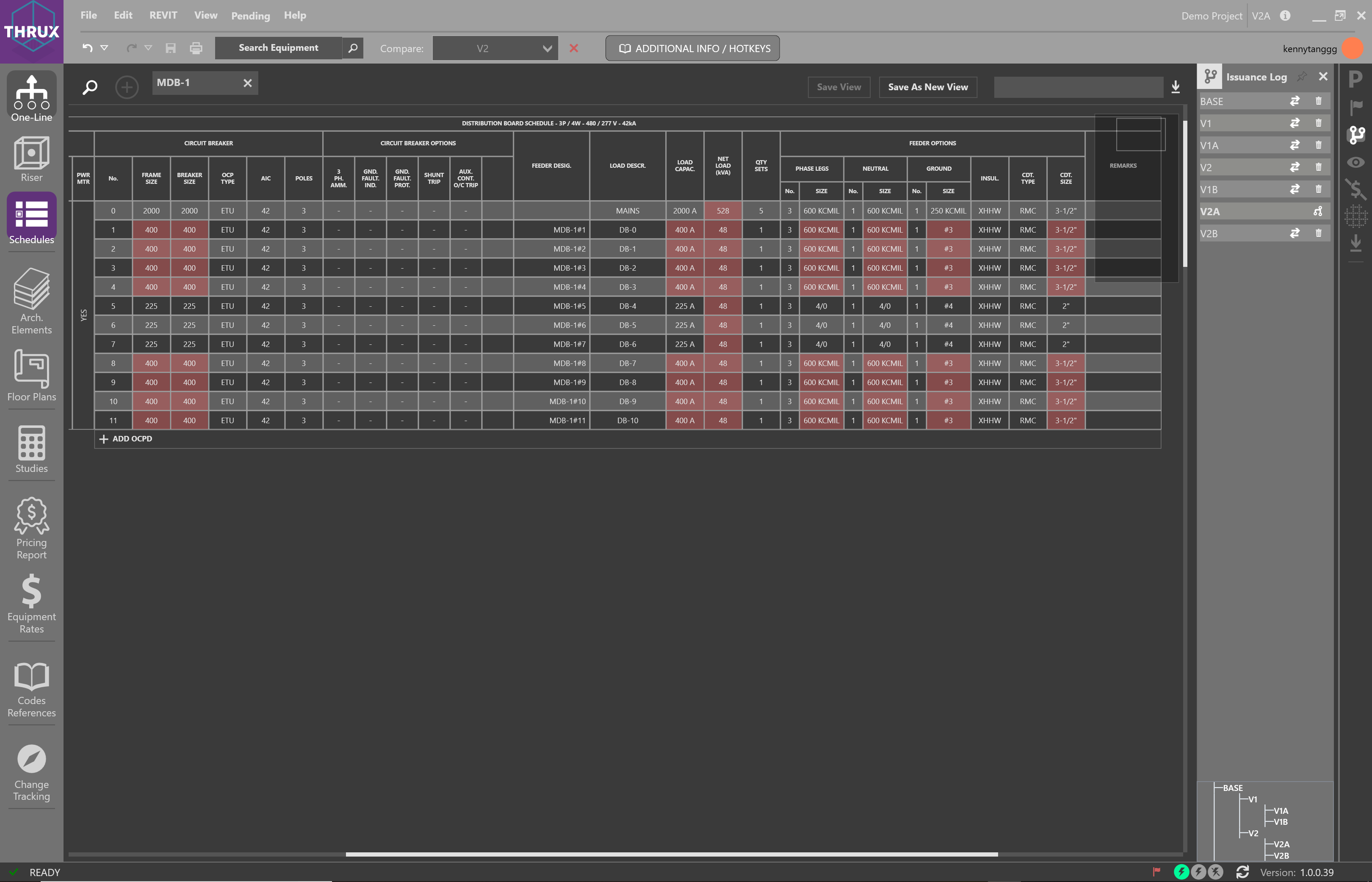
Comparing Schedules between Branches
Converting Breaker/Switch and Fuse
By default, Distribution Boards use breakers as protective devices, while Switchboards use switch and fuse combinations. To convert a board’s protective devices, click the Settings (gear symbol) button in the top left of the schedule. Then, under Change Schedule Type, select Convert to Switch/Fuse.
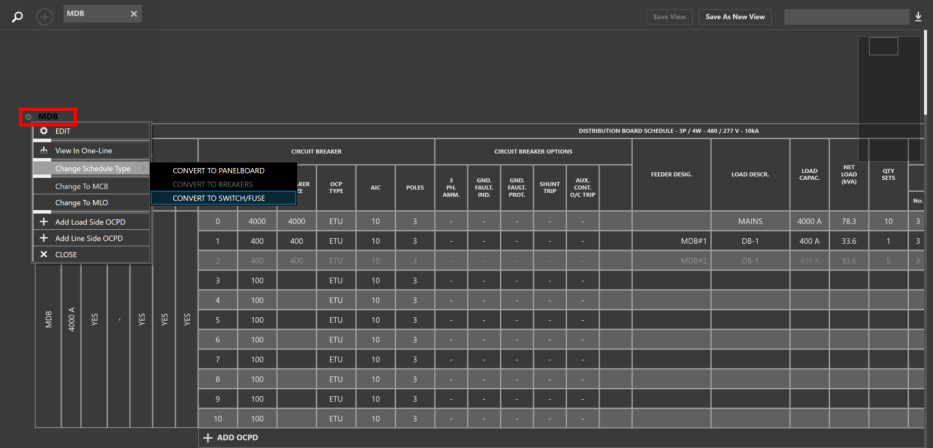
Converting a Distribuion Board to a Switchboard will change its protective devices from circuit breakers to switch and fuses
Schedule Views
Groups of Schedules can be saved for a later viewing. Open all of the Schedules to be grouped, then click Save As New View, and enter a name. Return to this view at any time.
In this example, two Schedule Views have been created, and you can toggle between them.
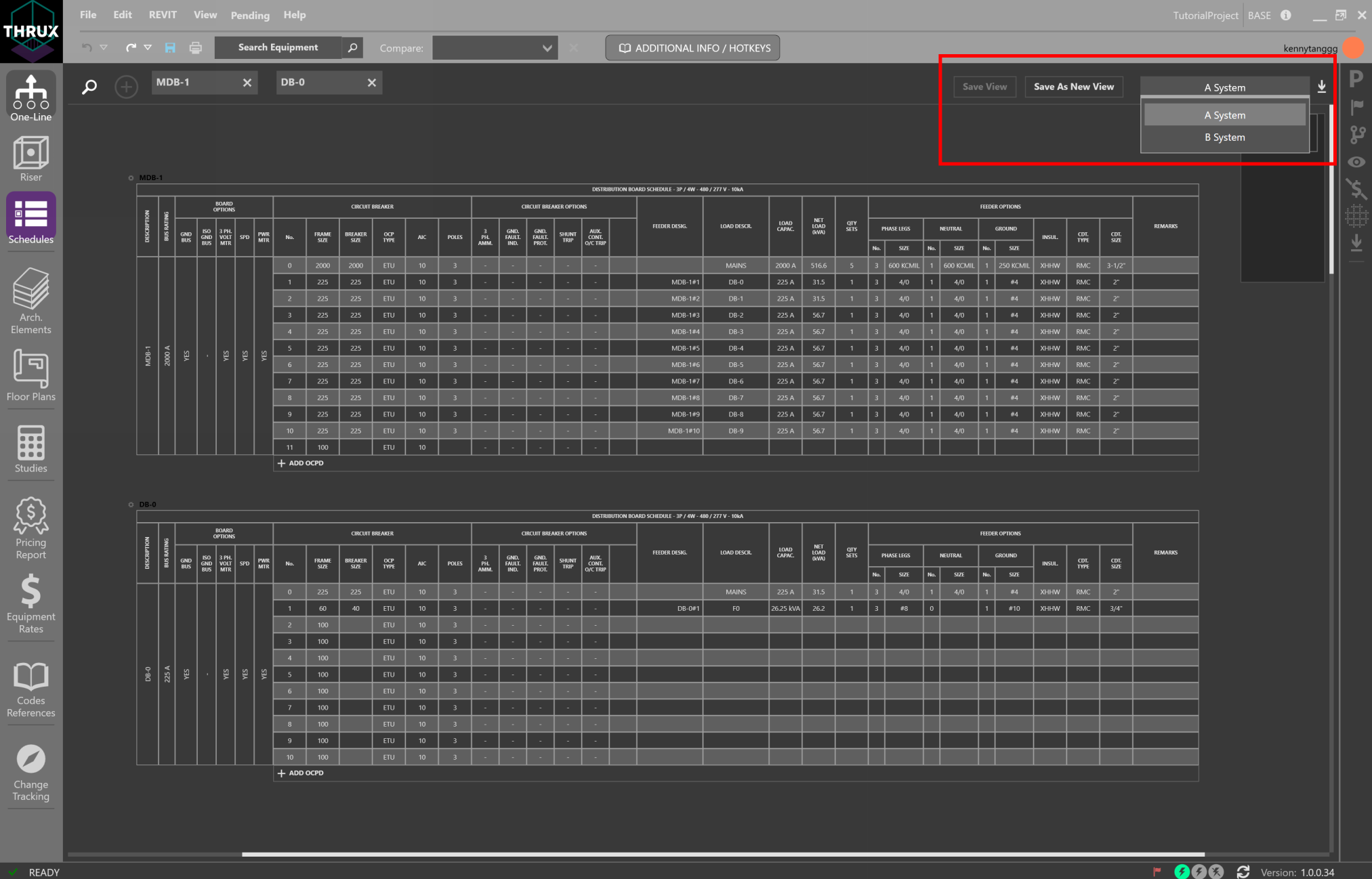
Saving Schedule Views allows groups of Schedules for later viewing
Exporting
To export the active Schedules, click Export (down arrow) button in the top right of the Workspace.
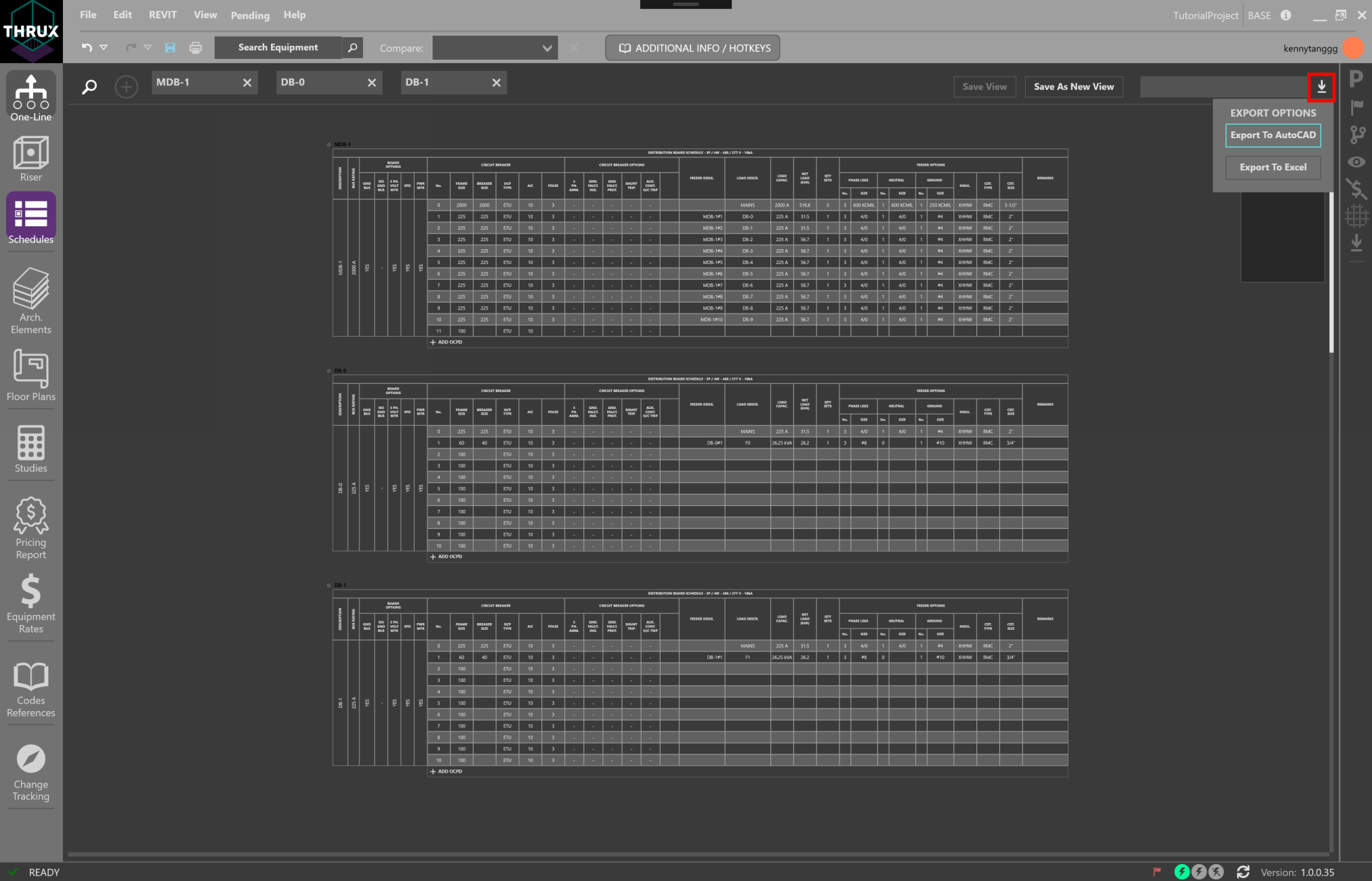
Exporting active Schedules
Then choose Export to AutoCAD or Export to Excel to export to .dwg or .csv.